
Key Takeaways
- 01
PowerBI project management dashboards centralize data for better project visibility. - 02
Real-time dashboards require proper data setup, structure, and integration. - 03
Step-by-step approach ensures accurate, functional, and scalable dashboards. - 04
Best practices improve clarity, usability, and decision-making efficiency. - 05
Avoid common mistakes to maintain performance, accuracy, and user experience.
A PowerBI project management dashboard is used by many project managers to monitor the progress, KPIs, and enhance decision-making in fast-paced settings. Nonetheless, the development of a dashboard that provides real-time insights and visibility takes more than simple configuration. It requires the appropriate structure, data flow, and considerate design methodology.
However, the question is, how do we develop a real time dashboard that actually helps in project success? It is necessary to create one to make decisions on time, enhance visibility, and control project performance. Well, we’ve got you covered. In this blog, we shall guide you through a step-wise and straightforward process of creating a powerful and real-time project dashboard using power BI. So, let’s begin!
Ready to transform your marketing project management with AI? Schedule a demo with ChatPM Pro today to see how AI-powered project management tools can simplify project planning, automate workflows, enhance team collaboration, and help your business deliver projects on time.
Understanding Power BI Dashboards: A Quick Overview
As we all know, Power BI is one of the most popular business intelligence systems, which allow organizations to transform unstructured data to valuable insights by creating interactive reports and visuals. It also enables real-time analytics, integrates various sources of data, and allows making a clear, data-driven decision with confidence by teams.
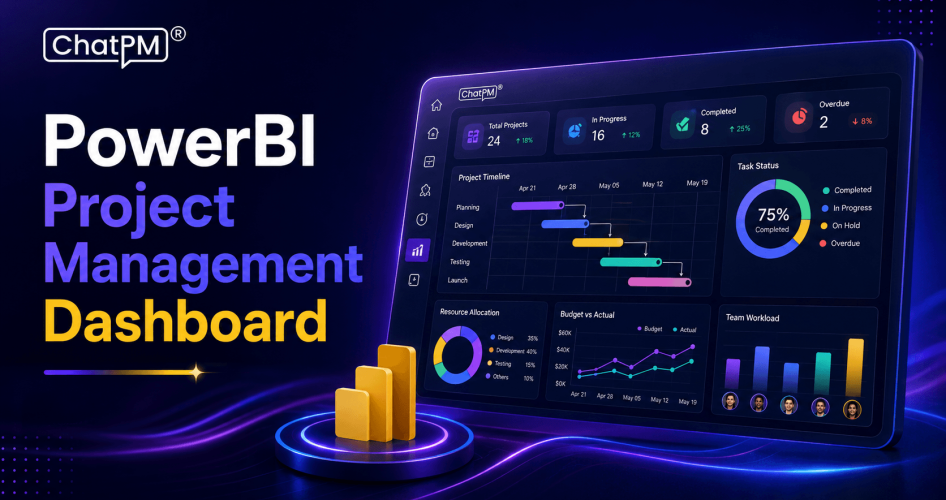
The Power BI project management dashboards unify the most important project data including timelines, resource allocation, performance metrics, and risks in a single centralized location. These dashboards are necessary to help experienced professionals keep track of their visibility, align projects, and move them to higher levels of control and efficiency.
Key Aspects of a Power BI Project Dashboard
1. KPI Tracking: Tracks critical metrics, such as budget, timeline, and the general project progress.
2. Real-Time Data Integration: Updates the information with links to various data sources.
3. Interactivity & Filtering: Enables the user to filter the data and access it in greater detail.
4. Visual Clarity: Utilizes clear charts and visuals to convey insights.
5. One-Page Layout: Most valuable information is presented in one easy-to-read screen.
6. Alerts & Sharing: Allows real-time updates and simple sharing among teams.
Ready to Simplify Project Reporting?
Bring project data, KPIs, budgets, and resource insights together with ChatPM Pro.
Step-by-Step Guide to Creating a Power BI Project Management Dashboard
Developing a real-time project dashboard PowerBI does not only consist of adding charts and connecting data. It is about creating something that actually makes you see what is going on in your projects at any given time.
The right approach can transform your data into real-time insights that are understandable and can be used to make faster and smarter decisions.
Step 1: Import Your Project Data
Start by opening Power BI Desktop and importing your data from sources like Excel or CSV. Select the relevant tables and load them into the workspace. This forms the base of your PowerBI dashboard for project tracking, so ensure you bring in all required project data.
Step 2: Clean and Transform Data
Open Power Query using the “Transform Data” option. Here, correct data types, remove duplicates, and clean any missing or inconsistent values. Well-prepared data ensures your project status dashboard PowerBI template delivers accurate and reliable insights.
Step 3: Create Key Measures (DAX)
Define important project metrics using DAX formulas. Calculate values like total budget, actual cost, and project count. These measures act as the core indicators that drive decision-making in your dashboard.
Step 4: Add Visualizations
Use visuals like KPI cards, bar charts, pie charts, and Gantt charts to represent your data. Focus on showing project status, budget vs. actuals, and timelines clearly. This helps transform raw data into meaningful insights for tracking performance.
Step 5: Add Interactivity (Slicers)
Include slicers for fields like project manager or department. This allows users to filter data dynamically and explore specific project details, making the dashboard more interactive and user-friendly.
Step 6: Structure Layout and Apply Theme
Arrange visuals in a logical format, with key KPIs at the top, trends in the middle, and detailed data below. Apply a clean theme and format visuals for clarity, ensuring the dashboard looks professional and easy to read.
Step 7: Publish to Power BI Service
Once your dashboard is ready, publish it to Power BI Service. This makes your report accessible online and keeps your PowerBI dashboard for project tracking available for real-time use.
Step 8: Create and Share Dashboard
Pin important visuals to create a final dashboard view. Share it with stakeholders and set permissions as needed. This ensures teams can collaborate effectively and stay updated with real-time project insights.
Best Practices for Designing a Power BI Project Dashboard
An efficient PowerBI project management dashboard will make the insights easily read and acted upon. Even minor design decisions can significantly influence the interpretation of data on the part of users. Adhering to best practices can assist you in developing a dashboard that is simple, predictable and effective in making daily decisions about the project.
1. Set a Clear Objective
Research what important decisions the dashboard should facilitate and then design it. This makes sure that all the elements have a purpose that is clear and meaningful.
2. Understand User Needs
Identify who will use the dashboard and what level of detail they expect. Tailor the content to match their comfort with data and insights.
3. Focus on Clean Design
Keep the layout simple by including only essential visuals. A clean design helps users quickly understand important information.
4. Ensure Visual Consistency
Use uniform colors, fonts, and styles across the dashboard. This creates a smooth experience and improves overall readability.
5. Structure Information Effectively
Arrange visuals based on importance and natural reading flow. This helps users navigate the dashboard without confusion.
6. Use Suitable Visuals
Select charts that clearly represent your data and make insights easy to grasp. The right visuals improve understanding and decision-making.
7. Enable Meaningful Interaction
Add filters and slicers to help users explore data as needed. Keep interactions simple so they enhance, not complicate, the experience.
8. Refine Through Feedback
Test the dashboard with users to identify gaps or confusion. Continuous improvements ensure better performance and usability over time.
Common Mistakes to Avoid
1. Excessive data amounts to clutter and less clarity.
2. Poor dashboard usability comes as a result of ignoring user needs.
3. It is easy to misinterpret data by using incorrect visuals.
4. Obsolete data leads to misguided information and choices.
5. The absence of interactivity constrains data exploration and insights.
6. Poor design consistency minimizes the readability and professionalism.
Driving Project Success with Power BI Dashboards
Creating a PowerBI project management dashboard will help teams to simplify project complex data into brief actionable information. The proper structure, visuals, and flow of data might help organizations to track progress, manage risks, and improve decisions. An effective dashboard will provide more visibility, alignment, and control and will result in more effective and successful projects.
ChatPM PowerBI dashboards are intelligent automation and real-time reporting combined in a single location. We help teams in monitoring performance, project health and keeping them in course with the business objectives. ChatPM simplifies the process of managing projects effectively and making data-driven decisions with their simple and user-friendly approach.
Get Started With ChatPM Pro