Key Takeaways
- 01
A centralized dashboard simplifies project monitoring and reporting. - 02
Real-time insights help teams respond to issues faster. - 03
The right KPIs reveal project health at a glance. - 04
Clean data structures improve dashboard accuracy and performance. - 05
Effective dashboards support better planning and decision-making.
Project managers deal with a constant flow of updates, deadlines, resource changes, and stakeholder expectations. The challenge is not collecting project data but turning that data into information that teams can actually use. A Microsoft Power BI project management dashboard helps bring key project metrics into one place, making it easier to track progress, monitor workloads, and stay on top of project performance.
If you’re planning to build a dashboard that gives your team better visibility into project performance, then don’t worry, we’ve got you covered. In this blog, we’ll walk you through the process of creating a project management dashboard in Power BI. You’ll learn how to organize project data, choose the right metrics, and design reports that help teams make faster and more informed decisions.
Ready to turn your project data into meaningful visual reports? Schedule a demo with ChatPM Pro and explore the power of custom Microsoft Power BI dashboards.
What is a Microsoft Power BI Project Management Dashboard? An Overview
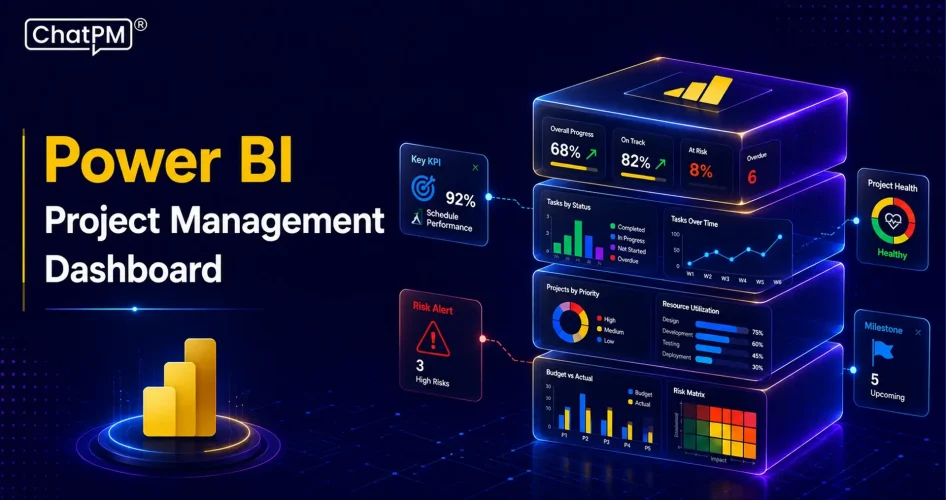
A Microsoft Power BI project management dashboard is a visual reporting solution that helps project teams monitor, analyze, and manage project performance from a single interface. It combines project data from different sources and presents it through charts, graphs, tables, and key performance indicators (KPIs) that are easy to understand.
Project managers use these dashboards to track project timelines, budgets, resource utilization, task completion rates, risks, and overall project health. Instead of reviewing multiple spreadsheets or reports, teams can access real-time project information in one place.
Power BI connects with project management tools, databases, spreadsheets, and business applications to create interactive reports. This allows stakeholders to view project status, identify delays, monitor team workloads, and make informed decisions based on current data.
A well-designed project management dashboard improves visibility across projects, supports better planning, and helps organizations respond quickly to changing project requirements. It also reduces manual reporting efforts and ensures that project data remains consistent and accessible for everyone involved.
Key Metrics to Include in a Project Management Dashboard
1. Schedule & Timeline Performance: Track project timelines, milestone completion, and schedule adherence.
2. Cost & Budget Tracking: Monitor spending patterns and compare costs against budgets.
3. Workload & Resource Utilisation: Measure team capacity, workloads, and resource distribution effectively.
4. Quality & Scope: Evaluate project quality and monitor scope change requests.
5. Risk & Issue Management: Identify project risks and track issue resolution progress.
How Do You Create a Project Management Dashboard in Microsoft Power BI?
Building a project management dashboard in Power BI involves more than adding charts and reports. The goal is to organize project data in a way that helps teams track performance, monitor progress, and make informed decisions. A structured approach ensures your dashboard delivers meaningful insights instead of overwhelming users with information.
Here are the key steps to create a Project Management Dashboard in Microsoft Power BI:
1. Connect to Your Project Data
Start by importing project data from sources such as Excel, SharePoint, SQL databases, Jira, or Microsoft Project. Bringing all project information into one place creates the foundation for an accurate Power BI PMO Dashboard.
2. Clean and Prepare the Data
Use Power Query to remove duplicate records, correct formatting issues, and organize data into a usable structure. Clean data helps ensure your Power BI Project Reporting Dashboard delivers reliable insights and accurate reporting.
3. Build Relationships Between Data Tables
Connect related tables using common fields such as Project ID, Task ID, or Resource Name. These relationships allow your dashboard to display connected project information and support dynamic filtering across reports.
4. Create Project Metrics and Calculations
Use DAX formulas to calculate key project metrics such as budget utilization, task completion rates, schedule performance, and resource productivity. Custom calculations help transform raw project data into meaningful business insights.
5. Design Dashboard Visualizations
Add charts, tables, KPI cards, and slicers to present project information in a clear format. A well-designed Power BI Project Reporting Dashboard makes it easier for stakeholders to monitor project status and identify issues quickly.
6. Publish and Share the Dashboard
Once your report is complete, publish it to Power BI Service for online access and collaboration. You can then create a centralized Power BI PMO Dashboard and share it with project teams, managers, and stakeholders.
What Are the Benefits of Using a Microsoft Power BI Project Management Dashboard?
A Microsoft Power BI project management dashboard gives project teams a centralized view of project performance, helping them track progress, monitor resources, and make decisions with greater confidence. Instead of relying on multiple reports, stakeholders can access key project information from a single source.
1. Better Project Visibility
Teams can view project status, timelines, budgets, and resource utilization in one place. This makes it easier to understand overall project health and identify areas that need attention.
2. Faster Decision-Making
Real-time reporting helps project leaders respond quickly to changes, risks, and delays. Access to current data reduces the time spent gathering information from different systems.
3. Improved Executive Reporting
A Power BI executive dashboard provides leadership teams with high-level project insights through easy-to-read visual reports. Executives can review performance trends without digging through detailed project data.
4. Stronger Resource Management
Project managers can monitor workloads and resource allocation across teams. This helps prevent bottlenecks and ensures resources are used effectively throughout the project lifecycle.
5. Enhanced Performance Tracking
Power BI project analytics dashboard enables organizations to measure project outcomes using KPIs, schedules, budgets, and productivity metrics. These insights support continuous improvement and better project planning.
6. Simplified Stakeholder Communication
Interactive dashboards make project reporting more transparent and accessible. Stakeholders can quickly understand project progress without relying on lengthy status reports.
Best Practices for Building a Microsoft Power BI Project Management Dashboard
1. Tailor Dashboards to Different User Roles
Design dashboard views based on the reporting needs of executives, project managers, and operational teams.
2. Build a Strong Data Architecture
A well-structured data model improves dashboard performance, scalability, and reporting accuracy.
3. Maintain a Clear Visual Hierarchy
Organize information logically so users can quickly identify important project insights.
4. Use Simple and Effective Visualizations
Choose visuals that communicate project data clearly without creating unnecessary complexity.
5. Enable Actionable Insights and Governance
Use security controls, formatting rules, and collaboration features to support better decision-making.
Ready to Turn Project Data Into Actionable Insights?
Building a project management dashboard in Power BI is about more than creating reports. It helps teams bring project data together, track performance, monitor resources, and make informed decisions faster. With the right metrics, visualizations, and structure, a Power BI KPI Dashboard can provide clear visibility into project health and support better project outcomes.
The value of a dashboard grows when project data is connected to daily execution and decision-making. While Power BI helps visualize project performance, teams also need a faster way to access updates, ask questions, and manage project information. ChatPM complements this process by providing instant project insights, AI-powered reporting, and conversational access to project data, helping teams stay informed without navigating multiple reports and dashboards.
Frequently Asked Questions
1. How often should a project management dashboard be updated?
It depends on your project needs. Most teams refresh dashboard data daily or in real time for better visibility.
2. Can Power BI handle multiple projects in one dashboard?
Yes, it can. You can track multiple projects and compare performance through a single dashboard view.
3. Which project management methodology works best with Power BI dashboards?
Power BI works well with Agile, Waterfall, and hybrid approaches. The dashboard can be customized for any methodology.
4. Can non-technical users understand Power BI project dashboards?
Yes, if the dashboard is designed properly. Clear visuals and simple KPIs make information easy to understand.
5. What is the biggest challenge when creating a project dashboard?
Data quality is often the biggest challenge. Inaccurate or incomplete data can affect reporting and decision-making.